


Here’s what most articles about WordPress performance won’t tell you: WordPress isn’t slow. Badly built WordPress is slow.
I’ve been building WordPress sites for years, and I’ve rebuilt enough of them to say this with confidence. I’ve taken sites scoring 31 on Google’s performance test and rebuilt them to 96. The platform wasn’t the problem — the implementation was. Every time.
So what actually makes a WordPress site slow?
The Real Reasons Why So Many WordPress Sites are Slow
There are a few reasons that crop up time and time again.
The build tools used to create it.
This is the biggest one, and it’s the one most agencies won’t admit to because they’re the ones using these tools.
Page builders like Elementor, Divi, and WPBakery are popular because they make building websites accessible to people who don’t know code. But they accomplish this by loading enormous amounts of CSS and JavaScript on every single page — whether or not that page uses any of those features. A simple contact page built in Elementor is still loading the entire Elementor library. Every render-blocking script, every unused stylesheet, every layer of abstraction adds up.
The result is a site that looks fine in the browser but is secretly carrying hundreds of kilobytes of code it doesn’t need, on every page, for every visitor.
This is the single biggest reason I stopped using page builders entirely and switched to building with GeneratePress and GenerateBlocks — a lightweight theme paired with a block-based builder that generates clean, minimal code. The performance difference isn’t incremental. It’s architectural. And it shows up immediately in the scores.
Too many plugins
Every plugin you activate is code that has to execute on every page request. Some plugins are essential and well-written. Others are bloated, poorly maintained, or doing five things when you only needed one of them.
A site with 40 active plugins is carrying a lot of weight. Some of those plugins are probably duplicating functionality. Some haven’t been updated in two years and may be introducing security vulnerabilities alongside their performance drag. Some load scripts on every page of your site when they’re only actually needed on one.
A periodic plugin audit — going through every active plugin and asking “do I actually need this, and is there a leaner alternative?” — is one of the highest-ROI improvements you can make on an existing site. It costs nothing except time, and it’s often surprising how much you can cut.
Unoptimized images
Images are almost always the heaviest assets on any given page, and they’re also the most commonly overlooked. An uncompressed photo uploaded straight from a camera at full resolution can be 4–8MB. That single image will hurt your load time regardless of everything else you’ve done right.
There are three levers here:
- Format — Modern formats like WebP deliver 25–35% smaller file sizes than JPEG with no visible quality difference. Many sites are still serving uncompressed JPEGs from years ago.
- Dimensions — Serving a 2400px wide image in a 400px container means the browser downloads three times more data than it needs, then scales it down. The browser does the scaling; the download is still the full size.
- Loading behavior — Lazy loading defers images below the fold so they don’t block the initial page load. It’s a one-line implementation with measurable impact on how fast the page feels to the first visitor.
The hosting environment
Cheap shared hosting puts your site on a server alongside hundreds of other sites, all competing for the same CPU, memory, and bandwidth. When any of those sites gets a traffic spike, everyone on that server slows down. You have no control over your neighbors, and they have no control over you.
The difference between a $5/month shared host and a quality managed WordPress host isn’t subtle — it’s often 15–25 Lighthouse points on its own, before you touch anything else on the site. Managed WordPress hosting is built specifically for WordPress, includes server-level caching, and typically offers much better performance infrastructure out of the box.
Hosting is infrastructure. It matters more than most people give it credit for, and it’s usually the easiest structural improvement to make without rebuilding anything.
No caching configured
Every time someone visits an uncached WordPress site, the server has to build the page from scratch — querying the database, assembling templates, processing PHP, and then sending the finished result to the browser. That process takes time, and it happens for every single visitor, every single time.
Caching saves a pre-built version of the page so subsequent visitors get it instantly, without all that backend work. Without caching, your server is doing unnecessary heavy lifting on every request. With a good caching setup — either a plugin like WP Rocket or server-level caching on a managed host — you can dramatically reduce your time-to-first-byte, which is often the single biggest factor in perceived load speed.
An aging, patched-together site
This one’s harder to diagnose but worth naming: sites that have been running for several years, through multiple WordPress updates, multiple theme updates, multiple rounds of “let’s just add a plugin for that” — they accumulate technical debt. Code that was fine in 2018 might be conflicting with how WordPress works in 2026. A theme that was lightweight at launch might have had features bolted onto it over time until it barely resembles the original.
No individual change broke it. The accumulation did.
The honest conclusion
Most of these problems are architectural — baked into how the site was built, not things you can optimize your way out of after the fact. You can layer performance plugins on top of a bloated build, but you’re working against the foundation rather than with it.
The ceiling you can reach with optimization on a badly built site is often lower than the floor of a well-built one. That’s the part worth sitting with before you spend more time and money chasing marginal improvements.
How to Test Your Website Performance
The best free tool for this is Google PageSpeed Insights at pagespeed.web.dev. It’s built on Google’s own Lighthouse auditing engine, it’s updated regularly, and it gives you both a score and a detailed breakdown of exactly what’s hurting you.
Here’s how to get useful results from it — because running it wrong is surprisingly common.
Step 1: Go to pagespeed.web.dev and paste in your URL
Simple enough, but which URL matters. Most people test their homepage and stop there. Your homepage might be your best-performing page — it gets the most attention, the most optimization effort, and often the least content weight.
Test the pages that actually drive business decisions: your main service pages, your most-visited blog posts, your contact page. If any of those are slow, that’s where visitors are forming impressions and where you’re losing them.
Step 2: Look at mobile first — not desktop
PageSpeed Insights defaults to showing you mobile results, and that’s intentional. Google uses mobile-first indexing, which means it crawls and ranks your site based on the mobile version. Your desktop score is useful context, but your mobile score is the one that actually matters for rankings.
This surprises a lot of people. A site that scores 90 on desktop can easily score 45 on mobile — same site, same content, wildly different experience. If you’ve only ever checked desktop, go check mobile right now.
Step 3: Read the four Lighthouse scores
At the top of the results you’ll see four circular scores, each from 0–100:
- Performance — How quickly and efficiently the page loads. This is the one most people focus on, and for good reason — it has the most direct impact on user experience and rankings.
- Accessibility — How usable the site is for people using screen readers, keyboard navigation, or other assistive technologies. This is also a legal consideration in many industries.
- Best Practices — Technical hygiene: HTTPS, modern image formats, no browser errors, no insecure third-party libraries. Think of it as a code quality check.
- SEO — On-page signals that help search engines understand your content: meta tags, crawlability, font sizes on mobile, link text quality.
The color coding tells you where you stand at a glance:
- Green (90–100): Good. You’re in the range where Google considers this passing.
- Orange (50–89): Needs attention. You’re leaving performance on the table.
- Red (0–49): Problem. This is actively hurting you.
The goal — and what I guarantee on every site I build through the Straight-A Guarantee — is green across all four.
Step 4: Scroll past the scores to the diagnostics
This is where most people stop looking, and it’s where the actual information lives.
Below the scores, PageSpeed Insights breaks down exactly what’s dragging your numbers down. You’ll see items organized into a few categories:
- Opportunities — Specific improvements with an estimated time savings attached. “Eliminate render-blocking resources” might say it could save 1.2 seconds. “Properly size images” might show a potential 800ms savings. These are prioritized by impact.
- Diagnostics — Things that don’t have a direct time estimate but indicate problems: excessive DOM size, inefficient cache policies, main thread work that’s blocking interactivity.
- Passed audits — Everything that’s working correctly. Worth a scroll to confirm you know what’s already good.
The Opportunities section is your to-do list. The ones with the biggest estimated time savings are where to focus first. Some will be quick wins — image compression, enabling lazy loading. Others will point to architectural issues that require more significant changes.
Step 5: Check the field data, not just the lab data
If your site has enough traffic, PageSpeed Insights will also show you Core Web Vitals field data — real measurements from actual Chrome users visiting your site, collected over the previous 28 days. This is different from the lab test at the top of the page, which simulates a visit under controlled conditions.
Field data matters because it reflects what real visitors actually experience — on their actual devices, with their actual connections, including any third-party scripts that load asynchronously and don’t show up cleanly in lab tests.
If your lab score is 75 but your field data shows “Poor” for LCP, that gap is telling you something important about what real users are experiencing versus what the simulation is catching.
For a complete explanation of every metric, what it means, and how to interpret the results, my guide to Google Lighthouse reports walks through each one in detail.
What Your Score Is Actually Telling You
This is the part most people skip, and it matters.
A score in the 60s or 70s on desktop might feel acceptable. But if your mobile Performance score is below 50, that’s not a “needs improvement” situation — that’s a signal that the site has structural problems that optimization plugins won’t solve.
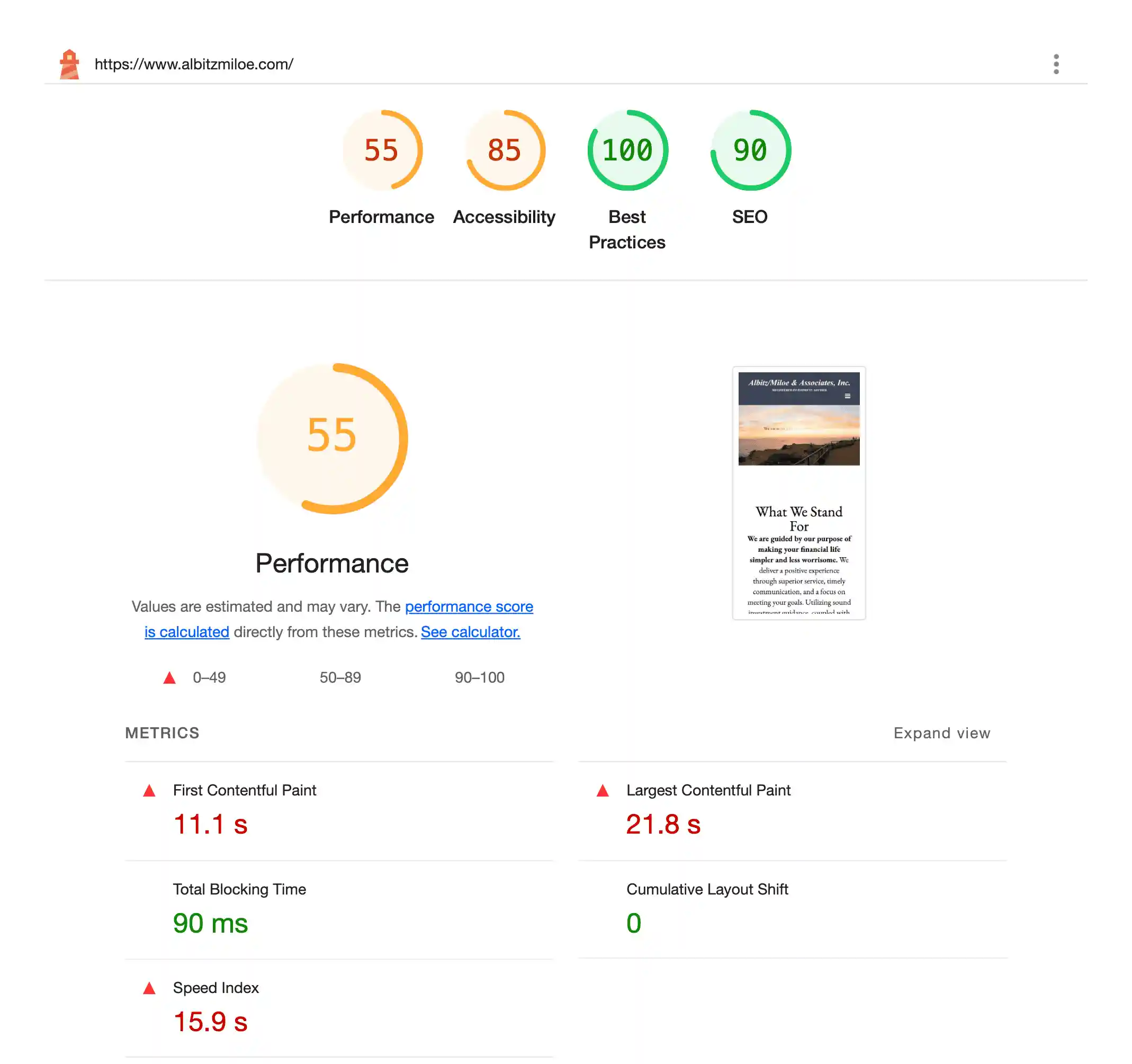
Here’s an honest framework for reading your results:
Score 90+ across all four categories Your site is performing well. Focus on content, conversion, and business outcomes. Minor tune-ups only.
Score 70–89 in one or two categories Fixable with targeted improvements — image optimization, caching, removing unused plugins, or a hosting upgrade. Worthwhile to address.
Score 50–69 in Performance, especially on mobile You’re in orange territory and it’s affecting your rankings and user experience. The fixes here might be surface-level or might require a more significant rebuild depending on what’s causing it.
Score below 50 in Performance on mobile This is almost always a structural problem. It typically means the site is built on a platform or framework that generates too much code, loads too many scripts, or was never architected for performance. You can spend weeks trying to improve this with plugins and still not break into the green. The foundation is the issue.
If you’re in this last category and you’ve already tried the usual fixes, the honest answer is usually that you need a rebuild — not more optimization attempts. I wrote about the signs it’s time to stop patching and start over if you want a framework for making that call.
What to Do About It
Now that you know your scores and what’s causing them, here’s where to focus. I’ve organized this by problem type — find the one that matches what PageSpeed Insights flagged and start there.
If your images are the issue
This is the most common culprit and also the most fixable without touching the core site build. Three things to address:
Convert to WebP. If you’re still serving JPEGs and PNGs, you’re sending more data than you need to. WebP images are 25–35% smaller at equivalent quality. Most modern image optimization plugins (ShortPixel, Imagify, Squoosh for manual conversions) handle this automatically. Enable it and let it run on your existing media library.
Size images for their containers. If your full-width hero image is 2400px wide but it’s displayed in an 800px container on most screens, you’re forcing every visitor to download three times more image data than they’ll ever see. Resize images to the largest size they’ll actually be displayed before uploading.
Enable lazy loading. Images below the fold don’t need to load before the visitor can see and interact with the top of the page. Lazy loading defers those images until they’re about to scroll into view. WordPress has had native lazy loading built in since version 5.5 — check that it’s not being disabled by a plugin or theme setting.
If your host is the bottleneck
This is often the highest-leverage single change you can make, and most people underestimate it.
Cheap shared hosting puts your site on a server alongside hundreds of other sites. You share CPU, memory, and bandwidth. When someone else’s site gets traffic, yours slows down. You have no control over it.
Managed WordPress hosting — Rocket.net and Kinsta are the two I use and recommend to clients — is built specifically for WordPress. It includes server-level caching, global CDNs, and infrastructure that’s optimized for exactly the kind of workload WordPress generates. The performance difference is often 15–25 Lighthouse points before you change anything else on the site.
If your PageSpeed diagnostics show a slow time-to-first-byte (TTFB), hosting is almost always the first place to look.
If caching isn’t configured
Without caching, every visitor triggers a fresh page build — database queries, PHP execution, template assembly — before a single byte gets sent to the browser. That overhead adds up, especially under any real traffic load.
A good caching setup eliminates most of that overhead by serving pre-built pages. If you’re on managed WordPress hosting, server-level caching is usually already configured. If you’re on shared hosting, a plugin like WP Rocket handles this well and is worth the cost. Make sure caching is actually active and not accidentally disabled — this is a surprisingly common situation after WordPress or plugin updates.
If plugins are piling up
Set aside an hour and do a plugin audit. Go through every active plugin and for each one ask: Do I actually use this? Is it doing one thing well or five things badly? Is there a lighter alternative that handles the one thing I need?
Common offenders worth scrutinizing:
- Contact form plugins that load scripts and styles on every page even when the form only appears on one page
- Social sharing plugins with heavy external script dependencies
- Slider/carousel plugins (often loaded sitewide despite being used on one page)
- Multiple SEO plugins (you only need one)
- Backup plugins running on aggressive schedules during peak traffic hours
- Plugins that haven’t been updated in over a year
Deactivating unused plugins doesn’t just help performance — it reduces your security surface area too.
If render-blocking resources are flagged
This one usually points at CSS or JavaScript that has to fully load before the browser can render anything on the page. The browser is essentially waiting at the starting line while scripts download and execute.
The fix depends on what’s causing it. Sometimes it’s a plugin loading scripts it doesn’t need globally. Sometimes it’s a theme loading its full stylesheet before anything else happens. A performance plugin like Perfmatters can help by disabling scripts on pages where they aren’t needed — a technique called script manager or asset cleanup. This is more technical territory, but it’s worth addressing if it’s showing up as a high-impact opportunity in your diagnostics.
If you’re running a heavy page builder
This is where it gets harder to give optimistic advice.
Page builders like Elementor and Divi generate bloated HTML and load large CSS/JavaScript libraries on every page regardless of what that page actually contains. You can work around some of this — there are optimization plugins specifically designed to strip unnecessary Elementor assets — but you’re fighting against the architecture rather than working with it.
In my experience, there’s a ceiling you hit with page builder optimization. You can move a 35 into the 60s. Occasionally into the low 70s. Getting into the greens consistently on mobile is rarely achievable without addressing the underlying build. The question is whether that ceiling is acceptable for your situation or whether the compounding SEO and conversion impact makes a rebuild worth considering.
If you’ve been optimizing for a while and you’re still stuck in the orange on mobile performance, that’s usually the signal that the foundation needs to change — not that you need to try more plugins.
If your mobile score is below 50 and nothing has moved it
Stop trying to optimize your way out. The problem is structural, and more optimization plugins won’t change that.
At this point the honest conversation is about whether a rebuild makes sense. That doesn’t have to mean starting from scratch with no knowledge of your business — a rebuild done right starts with understanding exactly what the current site does well, what it doesn’t, and what the new one needs to accomplish. The result is usually dramatically faster, easier to maintain, and better positioned to rank.
If that sounds like where you’re at, let’s talk about what a performance-first rebuild would actually look like for your site. I’ll give you a straight answer on whether it makes sense — even if that answer is “not yet.”
Frequently Asked Questions
Does website performance affect SEO? Yes, directly. Google uses Core Web Vitals as a ranking signal, which means slow sites rank lower than fast sites with otherwise equivalent content. Beyond rankings, performance affects bounce rate and engagement — both of which influence how Google evaluates your pages over time.
What’s a good PageSpeed score? 90 or above in all four Lighthouse categories is the target. It’s also what I guarantee on every site I build — the Straight-A Guarantee exists because I believe this standard should be the floor, not the aspiration.
Is WordPress slow? No. Badly built WordPress is slow. WordPress running on a managed host, built with a lightweight block-based theme, with properly optimized images and a minimal plugin footprint can score 100 on performance. I’ve built dozens of sites that do. The platform isn’t the variable — the implementation is.
Can I fix my performance score without rebuilding? Sometimes. If the issues are images, caching, or hosting, yes — those are fixable without touching the core build. If the issues are rooted in a bloated page builder or poor site architecture, you can improve the score but you’ll hit a ceiling. How high that ceiling is depends on how the site was built.
How often should I test my website performance? At minimum, quarterly. Performance drifts over time — plugin updates can introduce regressions, new content adds weight, and hosting environments change. Treat it like a regular maintenance check, not a one-time audit.
What’s the difference between PageSpeed Insights and Lighthouse? PageSpeed Insights uses Lighthouse under the hood, but runs the test from Google’s servers and includes field data from real Chrome users (called Core Web Vitals data). Lighthouse is the underlying auditing tool you can also run directly in Chrome DevTools. For most purposes, PageSpeed Insights is the right place to start.
The Bottom Line
Website performance isn’t a technical nicety — it’s a business outcome. Faster sites rank better, convert better, and create better first impressions. Slower sites do the opposite, quietly.
The good news is that performance is fixable. The less good news is that how fixable it is depends on how the site was built in the first place. Surface-level problems have surface-level solutions. Structural problems need structural fixes.
If your site is in the red and you’re not sure where to start, run it through PageSpeed Insights first. See what comes back. And if what comes back suggests something deeper is going on, that’s worth a conversation.
→ Learn how I build WordPress sites performance-first from the foundation up
Related reading: